

Booth start and stop
Start and stop Lingual from the booth
A button on your booth control surface can start and stop the Lingual service. The booth computer still captures the soundboard. The button tells the Lingual dashboard on that computer when to begin and end.
Before you begin
You need three things.
- Your church's booth token. Lingual sends it to you separately. It is a long string of letters and numbers, and it works like a password.
- A booth computer signed in to Lingual. This is the computer that receives the soundboard feed. It opens
https://your-church.lingual.services/operator, with your church's Lingual address in place ofyour-church. - Something that can send a web request when a button is pressed. Most booths use Bitfocus Companion with a Stream Deck or a similar button pad. Any device or app that can send an HTTPS POST will work.
The button never records audio by itself. It tells the dashboard that is already open on the booth computer to press Start or Stop. If that dashboard is closed, nothing happens.
Each service day
- On the booth computer, open your church's dashboard at
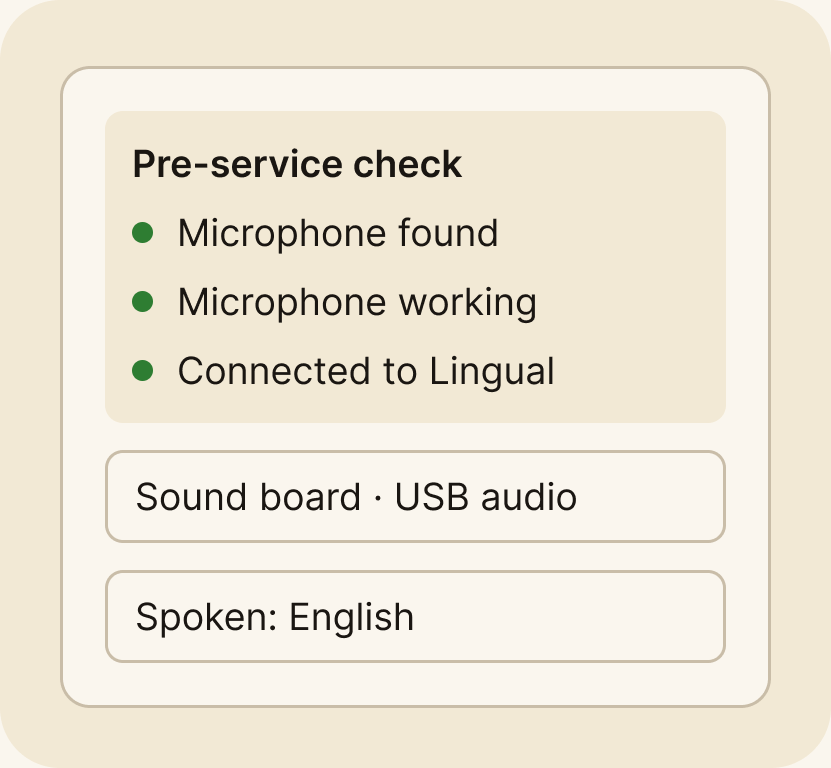
https://your-church.lingual.services/operatorand sign in. - Choose the soundboard input and complete the microphone check. Allow microphone access if the browser asks.
- Click Arm remote control for today. If Lingual asks you to confirm the spoken language, confirm it now.
- Leave the page open and keep the computer awake. Arming lasts until midnight. Reloading or closing the page disarms it, so arm it again after a reload.
Keep one dashboard open on one computer. If two are open, the one opened most recently receives the button presses.
Set up Bitfocus Companion
- In Companion, add a Generic: HTTP Requests connection. Leave its built-in authentication set to None, and leave certificate checking on.
- On your Start button, add a POST action to the press action. Do the same on your Stop button, using the settings below.
- Paste your booth token where the header says
<your token>. Leave the body empty.
| Setting | Start button | Stop button |
|---|---|---|
| URL | https://your-church.lingual.services/api/tenant/remote-control/start | https://your-church.lingual.services/api/tenant/remote-control/stop |
| Method | POST | POST |
| Header | {"Authorization":"Bearer <your token>"} | {"Authorization":"Bearer <your token>"} |
| Body | Empty | Empty |
Companion's Header field takes the JSON shown above, braces included.
Other devices and scripts
Anything that can send an HTTPS POST with a header works. These are the same two requests from a terminal:
curl -X POST \
  -H "Authorization: Bearer <your token>" \
  https://your-church.lingual.services/api/tenant/remote-control/start

curl -X POST \
  -H "Authorization: Bearer <your token>" \
  https://your-church.lingual.services/api/tenant/remote-control/stop
If your device cannot set an Authorization header, send X-Lingual-Remote-Token: <your token> instead. Send one of the two headers, not both. Never put the token in the address itself.
What the responses mean
| Response | Meaning | What to do |
|---|---|---|
| 202 | The command reached the booth dashboard. | Look at the dashboard to confirm it started or stopped. |
| 401 | The token is missing, mistyped, or belongs to a different church. | Paste the token again and check for missing characters or extra spaces. |
| 404 | Booth start and stop is not turned on for your church. | Contact Lingual. |
| 409 | No signed-in dashboard is open for your church. | Open the dashboard on the booth computer and sign in. |
A 202 is not the final word. Before the service, check that the dashboard shows LIVE, that the microphone bars move, and that captions appear on a phone.
Start on schedule from Planning Center
If your services are in Planning Center, Lingual can also start and stop on its own at the service times in your plan. An editor or admin turns this on in Settings, under Auto-start at service time and Auto-stop at service end.
Scheduled starts use the same armed dashboard, so arm the page the same way each service day. The Start and Stop buttons still work at any time, so you can begin early or end late when the service runs long.
Keep the token safe
Anyone with the token can send Start and Stop to your church's open dashboard. Treat it like a password.
- Keep it only in your Companion or device settings. A saved Companion configuration contains the token, so store exported copies carefully.
- Do not email it around, post it in a chat, or put it in a web address.
- If it might have leaked, contact Lingual. We replace it, and the old one stops working.
Troubleshooting
I pressed Start and nothing happened
The dashboard holds a button Start until the page is armed and the microphone check is clear, and it shows "Remote Start held" when this happens. Finish the microphone check, click Arm remote control for today, then press the button again.
Stop asked for confirmation on the dashboard
A page that is not armed asks before ending a live service, so a stray press cannot end it. An armed page stops without asking. Stopping ends the service and saves the recording.
The page was reloaded during the week
Reloading disarms it. Arm it again before the service.
The browser asked about the microphone
Answer the prompt at the booth computer, then press Start again. A browser sometimes needs one click on the page before it lets audio start.
Manual Start and Stop on the dashboard always work, with or without booth buttons.
Want booth buttons for your church?
Ask us to turn on booth start and stop, and we will send your church its token.
Contact us